Orbit Cockpit shows drivers the tasks that belong to their tour and its stops, opens them at the right point of the stop and, for blocking tasks, holds the tour until the work is done. Tasks that belong to no tour are listed under More.
A delivery rarely ends with the handover alone. Someone has to count the exchanged pallets, photograph the loading bay or confirm a seal number. In Orbit these jobs are tasks. When a task belongs to a Tour or one of its stops, the driver works it off in Orbit Cockpit, and Orbit MissionControl and Orbit Connect show the result straight away. Tasks come from Task Templates or the Orbit API, so the driver never creates one.
This article is for drivers and for the operators who set tasks up. The fields a form can contain are covered in Task Forms.
Key highlights:
Tasks where the work happens: stop tasks sit on the stop, tour tasks sit in the tour details
Opened at the right point: a stop task opens on arrival, before loads and proofs, or right before departure, as its template sets
Guided forms: steps, prefilled values and photos taken with the camera
Blocking tasks hold the tour: the driver cannot start, move on or finish until they are completed or skipped
Skipping on your terms: the driver can skip only the tasks you mark as skippable, and the skip is recorded
Tasks without a tour under More: a task that belongs to no tour is listed under More > Tasks, and the More tab shows how many are open
Orbit Cockpit shows the open tasks of every tour that is Assigned or Running, as long as the task belongs to the tour itself or to one of its stops. A task that belongs to no tour, such as one on a Shipment or a Load, is listed under More. See Tasks Without a Tour.
Tour tasks appear in the tour details, in a section called Tasks. They cover work that is not tied to one address, such as a vehicle check before departure.
Stop tasks appear in a Tasks section on the stop screen. In the stop list of the tour details, each stop with open tasks shows a count such as 2 tasks, highlighted when one of them is overdue.
Each row shows the task name, a Blocking badge where it applies and, for a task with a due date, Due by or Overdue since followed by the day and time. Overdue tasks come first, then tasks by due date, then tasks without one. A task that is completed or skipped anywhere, in any Orbit app or through the API, leaves the list.
The task is assigned to them: to the driver's carrier, to their carrier team, or to the driver personally. Tasks assigned to your own operations team never reach Orbit Cockpit.
Their role allows viewing tasks: the managed roles for carrier users already do. If you use custom roles, make sure the driver's role allows viewing tasks and acting on them. See Roles and Permissions.
Otherwise the driver sees no Tasks section, and no task holds their tour. Without a role that allows viewing tasks, the Tasks row under More is not shown either.
Some tasks belong to no tour or stop. They refer to the carrier, a Shipment, a Load or a Transport Draft. Orbit Cockpit lists them under More, in the first row, Tasks. The row shows how many of these tasks are open and assigned to the user, to their carrier team or to their carrier, and the More tab carries the same number.
The list has up to three sections:
Overdue: open tasks whose due date has passed
Open: all other open tasks, ordered by due date, with tasks without one last
Done · last 7 days: tasks completed or skipped in the last seven days, newest first
With nothing to show, the list reads All Done.
Each row shows the task name and, below it, the due date if the task has one. A finished task shows Completed or Skipped with the date instead. A task that refers to the user's own carrier also names the carrier. When a task is not the user's alone, the line starts with who it is for: For the carrier, or For followed by the name of the team or the colleague.
Tap a row to open the task in the same sheet as a task on a tour. The header names what the task refers to and when it is due. A task without a tour waits for no arrival and never holds a tour. A completed or skipped task opens read-only, with the submitted answers when it was completed with a form.
A user whose role allows viewing every task of the carrier, such as a Carrier Administrator, can switch between Mine and All at the top of the list. All adds the tasks of the other teams and users of the carrier. The number on the row and on the tab always counts Mine.
A tap on a notification for a task without a tour opens the list and the task. Without an internet connection, the tap opens the copy of the task on the phone, if there is one. Completing the task still needs a connection.
Orbit Cockpit opens a stop task in a sheet by itself, at the point of the stop set for the task. The operator chooses this point in the task template, and a task without one opens on arrival.
Point
When the sheet opens
On arrival
After the driver taps Arrived at the stop
Before loads and proofs
When the driver starts to leave the stop, before loads are marked or scanned and before proofs such as a signature are captured
Right before departure
After loads and proofs, directly before the departure is recorded
Several tasks open one after the other. The header shows the task name and where it belongs, for example Stop 2 · ACME Ltd or Tour · TUR-4711.
A task that is not blocking opens by itself once. If the driver closes it with ×, the stop carries on with its next step and the task waits in the stop's Tasks section. Tap a row there to open a task at any time, whatever its point. A blocking task can be closed too, as described under Blocking Tasks: the stop then stays where it is.
At a stop the driver marks as failed, no loads or proofs are captured. Every task that has not opened yet opens directly before the departure.
When Orbit Cockpit records an arrival by itself from the device's location, the stop's arrival tasks open as after a tap. When Orbit Cockpit records a departure by itself, it opens no sheet. An open blocking task holds an automatic departure, and the stop shows a notice such as Left stop 2 · Missing: Seal check.
Open the task from the sheet that opened by itself or from the Tasks section.
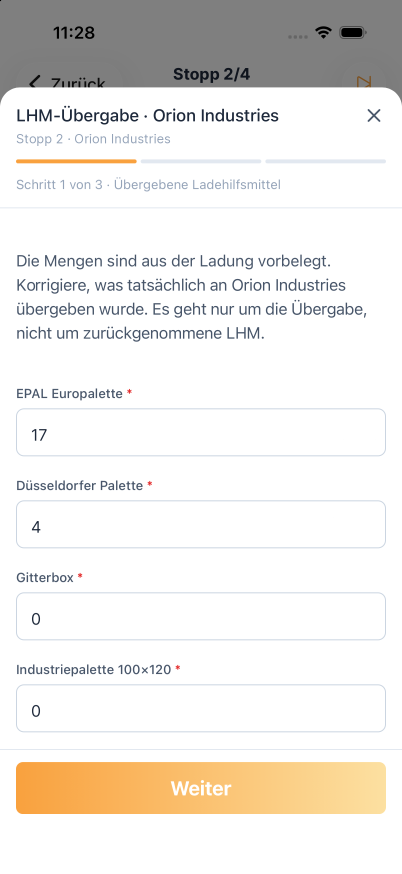
Read the step. The progress line shows where you are, for example Step 1 of 3 · Handed-over pallets.
Check the prefilled values and correct any that do not match what happened.
Tap Next. Use Back to return to an earlier step.
On a photo step, tap Take photo to open the camera. Depending on the form, a second button offers Choose from gallery or Choose file.
If the form ends with a Summary, check your entries. Tap Edit to change a step.
Tap Submit.
The first step of a form, with the quantities filled in from the loads at this stop.
Prefilled values come from the task template, and the driver can change every one of them. Photos upload while the driver carries on with the form. A counter such as 2 of 5 shows how many photos a field holds and accepts, and tapping a photo opens it large with Remove photo. While uploads are still running, Submit waits with Uploads are still processing….
When Orbit rejects a value, the form shows Submission failed: check the highlighted values. and marks the field. Closing a form that holds entries asks Discard your entries? first, because discarding removes everything entered, photos included.
A stop task can only be completed after the driver has arrived at its stop. The driver can open it earlier and even fill in the form, but Submit and Complete stay disabled with the hint You can do this once you have arrived at the stop. After the driver taps Arrived, the button becomes available and nothing entered is lost. Tour tasks have no such condition.
The sheet header shows Skip when the task is marked as skippable.
Tap Skip.
Read the question Skip this task? Orbit Cockpit tells the driver that the dispatcher will see the skip.
Tap Skip to confirm, or Cancel to go back.
A skipped task leaves the list and no longer holds the tour. Skipping does not wait for the arrival, so a driver can skip a stop task before reaching the stop.
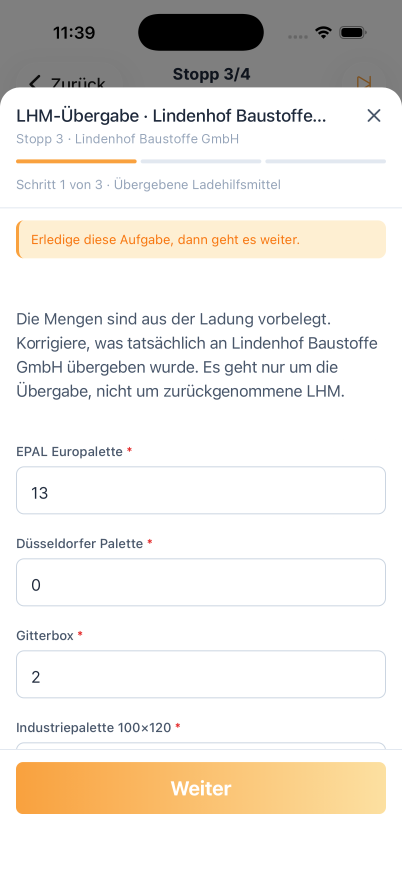
A blocking task holds the tour until it is completed or skipped. Each time the driver moves the tour on, Orbit Cockpit checks for open blocking tasks and opens them instead of carrying out the tap.
Driver taps
Blocking tasks that must be done first
Start Tour
The tour's blocking tasks
Arrived
The tour's blocking tasks
Continue (leaving a stop)
The tour's blocking tasks and those of the current stop
Complete Tour
The tour's blocking tasks and those of the last stop
A blocking stop task opens at its own point of the stop, like every other stop task. Whatever is still open comes up directly before the departure.
The tasks open one after another. A notice at the top of the sheet reads Complete this task to continue. With several tasks it reads Complete all 3 tasks to continue. and shows the position, for example 1 of 3 · Next: Seal check.
A blocking task opened by the departure tap. The tour continues once it is done.
After the last blocking task, Orbit Cockpit carries out the held step by itself, so the driver does not tap again.
The driver can close a blocking task with ×, for example to look something up or when there is no connection. The tour stays where it is, a message says Task still open, and the next tap on the same button opens the tasks again.
Completing or skipping a task needs an internet connection. Orbit Cockpit does not complete tasks offline. Without a connection the attempt fails with Completing failed or Submission failed. Please try again., and the form keeps its entries so the driver can tap Submit again later.
The blocking check works from the task list already on the device, so it applies with or without a connection. An open blocking task therefore holds the tour until the connection returns and the task is done. If a tour's task list has never loaded, Orbit Cockpit shows Tasks not loaded and asks the driver to check the connection.
Spaceport Shipping Co. delivers building materials across Vienna and swaps pallets at every drop. Its operations team sets up a template that puts a blocking "Pallet exchange" task on each dropoff stop, with the quantities prefilled from the loads and a photo step for the empty pallets taken back. Mohammad taps Arrived at ACME Ltd and the task opens. The form says 17 Euro pallets, but the customer kept two, so he enters 15, taps Next, photographs the returned stack and taps Submit. His next tap on Continue takes the tour on to the next stop, and his dispatcher sees the completed task with its photos in Orbit MissionControl.
Check that the task is assigned to the driver's carrier, carrier team or to the driver, and that the driver's role allows viewing tasks. In a tour, a task appears only when it belongs to that tour or one of its stops, and tours that are not yet Assigned or already finished show no tasks. A task that belongs to no tour is listed under More > Tasks instead.
Can the driver close a blocking task?
Yes, with ×. The tour stays where it is until the task is completed or skipped: a message says Task still open, and the next tap on the same button opens the task again.
Why did a task not open when the driver arrived?
Its template sets a later point of the stop, so it opens before loads and proofs or right before departure. The driver finds it in the stop's Tasks section at any time.
Can a driver skip a blocking task?
Only if the task is marked as skippable. A skipped blocking task no longer holds the tour, and the dispatcher sees the skip.
What if a dispatcher completes the task in Orbit MissionControl?
The task disappears from Orbit Cockpit and no longer holds the tour. The same applies to tasks completed in Orbit Connect or through the Orbit API.
Does a completed task create a document?
It can. When the task template links a document template, Orbit renders a PDF from the completed task with the Document Engine. Task Templates explains the setup.